
If you are stepping into your first Annual Compensation Review (ACR) cycle as a Workday system admin, it can feel like being handed the controls of an airplane mid-flight. There are dates to track, configurations to verify, managers asking questions you haven’t heard before, and somewhere in the middle of it all — your organization might be going through a restructuring. It’s a lot.
This guide is written specifically for Workday system admins in the US and Canada who are navigating the ACR process, whether it’s their first cycle or they’re walking into one already complicated by org-wide changes. By the end, you’ll know exactly what happens during a compensation review cycle, what your role looks like, and how to handle the landmines that come with reorgs and transfers.
What Is the Workday ACR Cycle?
The Annual Compensation Review (ACR) — sometimes called the Advanced Compensation Review cycle — is a structured process inside Workday where organizations review, recommend, and award compensation changes for eligible employees. This typically includes merit increases (adjustments to base pay), bonuses, and sometimes stock awards, all managed through Workday’s Compensation Review Process.
The compensation or Advanced Compensation cycle is the review event in Workday, launched for a certain length of time to review, recommend, and award compensation changes, stock grants, and bonus payments. Most organizations refer to these activities as their compensation cycle.
Most organizations run this process annually, though bonus cycles may run quarterly depending on the company. The ACR isn’t just a report — it’s a live workflow in Workday where managers at every level of the hierarchy participate, propose awards, and pass tasks up the chain.
The Compensation Review Process will send out inbox tasks to all managers (Compensation Planners) with direct reports who are up for review. As soon as a manager submits the awards for their direct reports, the next level manager will then be able to propose awards for their direct reports as well as their indirect reports. The process will continue to roll up the organization hierarchy until it reaches the top.
When Does the ACR Cycle Happen?
There is no single universal date for when ACR discussions start — it depends entirely on how your organization has configured the process and what their fiscal calendar looks like. That said, there is a general pattern most organizations follow.
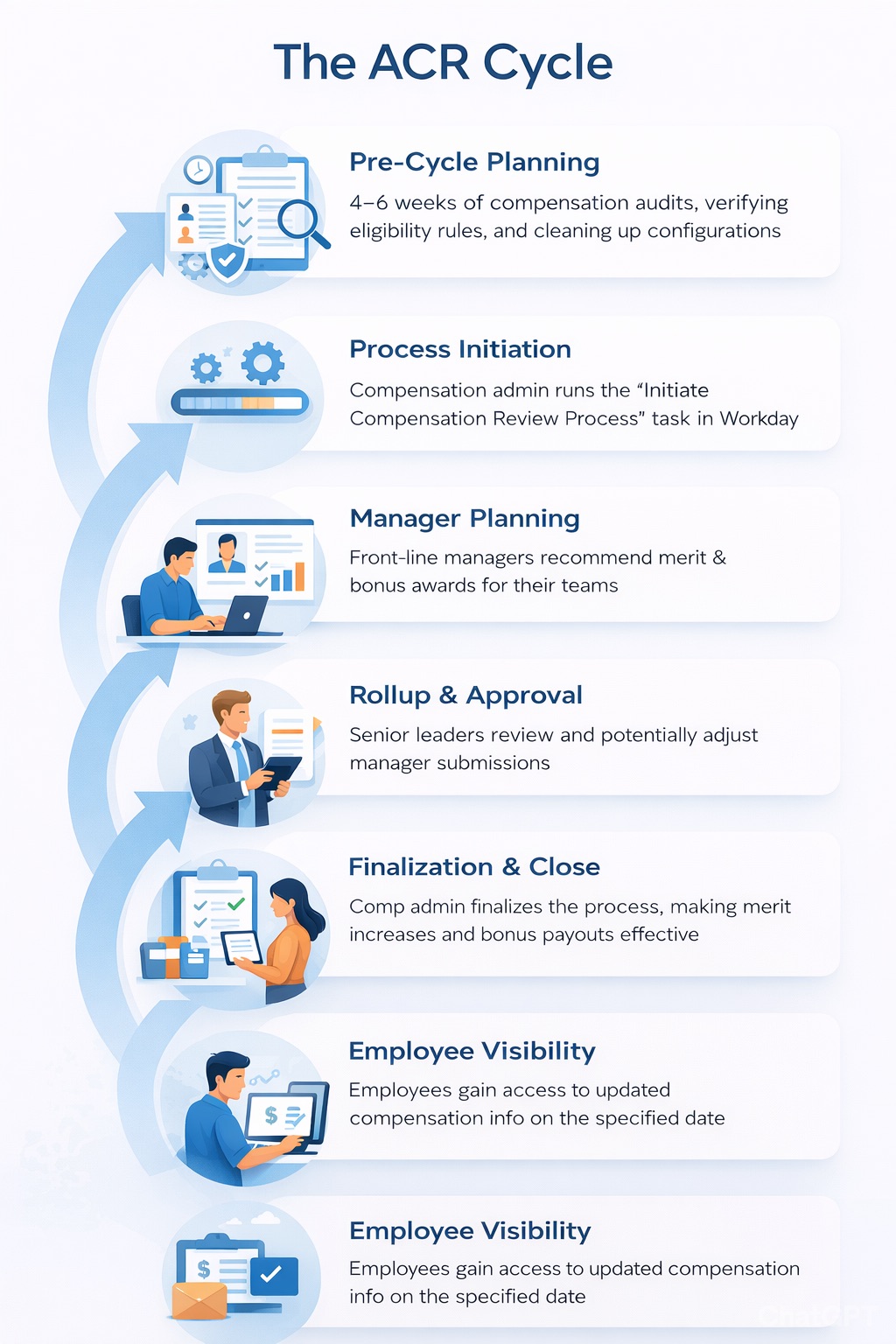
Pre-cycle planning usually begins four to six weeks before the process is formally initiated. This is when compensation admins audit the data, verify plan assignments, check eligibility rules, and make sure the configuration is clean before anything goes live. Think of this as the quiet, behind-the-scenes phase where most of the real work happens.
Process initiation is the moment the compensation administrator runs the “Initiate Compensation Review Process” task in Workday. The process to launch a bonus can take 10 to 12 minutes, and merits take at least 12 minutes. And every time you make a change to a process, you have to relaunch it — so getting the configuration right before launch is critical.
Manager planning is the active period when managers log into their Workday inboxes, open the configurable grid, and start recommending awards for their teams. This phase can last two to four weeks depending on the size of the organization.
Rollup and approval follows after front-line managers submit. Senior leaders review and potentially adjust proposals as they move up the hierarchy.
Finalization and close happens when the compensation administrator closes out the process. At this point, approved merit increases become effective on the configured date, and bonus payments are scheduled.
Employee visibility is the final step. Workday will hide the compensation data from the employee until after the specified date. In other words, this is the date at which point the employee will be able to see the changes made during the compensation review process. Some organizations use this window to give managers time for in-person conversations before numbers appear on worker profiles.
The Five Key Dates Every Admin Must Know
Inside the ACR configuration, there are five critical dates that control how the entire process behaves. Getting these wrong causes real problems — employees missing from the cycle, managers getting the wrong workers on their grids, budgets not calculating correctly.
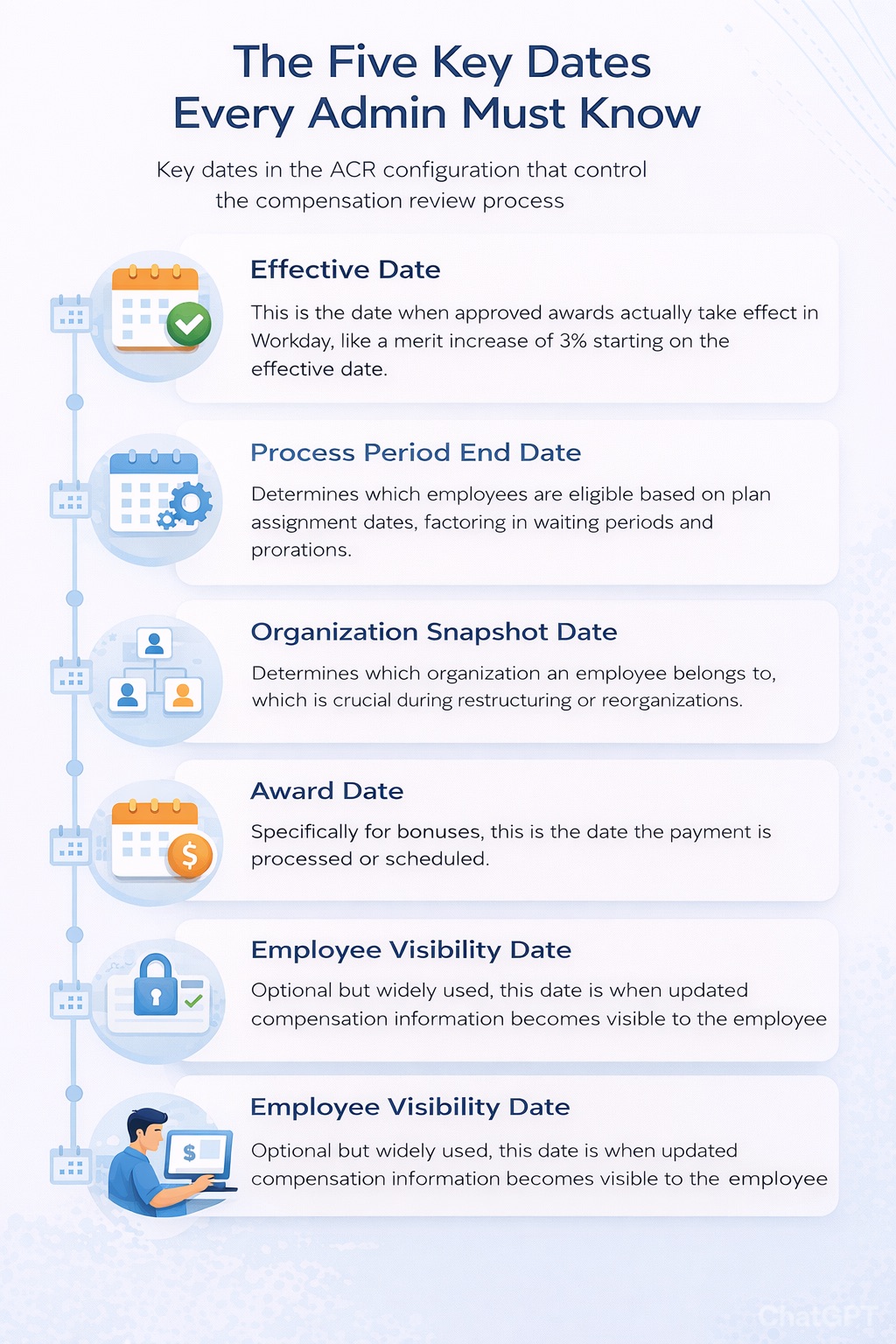
Effective Date — This is the date when approved awards actually take effect in Workday. If an employee receives a merit increase of 3%, it will begin impacting the worker’s compensation starting on the effective date of the process.
Process Period End Date — This date will determine which employees are eligible for inclusion in the compensation review process, based off the plan assignment dates. Workday will also recognize waiting periods as well as any proration calculations. If an employee is eligible for a compensation plan starting on a date after the Process Period End Date, the employee will not be included in the process.
Organization Snapshot Date — This is one of the most misunderstood dates, and it becomes especially critical during restructuring. This date allows Workday to determine which organization an employee belongs to, and therefore which organizations are included in the compensation review process. If a worker was in “Organization A” for the entire process period but was transferred to “Organization B” before the Organization Snapshot Date, they would be in “Organization B” for the compensation review process.
Award Date — For bonuses specifically, this is the date the payment is processed or scheduled.
Employee Visibility Date — Optional but widely used. Some clients choose to delay visibility by a few days so a manager can have an in-person conversation with the worker to review compensation updates.
What Happens During Org-Wide Restructuring or Reorg?
This is where first-time admins often feel the most overwhelmed — and for good reason. Organizational restructuring and the ACR cycle are not natural friends.
Workers Getting Assigned to the Wrong Manager’s Grid
Because Workday locks in the org structure based on the Organization Snapshot Date, any transfer that happens after that date won’t be reflected in who “owns” that worker on the planning grid. Organizational restructuring and recent transfers mean that the most appropriate manager is not the one proposing the awards. Workday gives you some flexibility in that it allows you to specify an Organization Snapshot Date that it uses to determine which manager will be proposing the awards. However, inevitably there will be some cases where a new manager is proposing awards for employees that they have barely managed.
The best approach: don’t plan any major organization changes in the last month before compensation review, unless you want to make life difficult for pretty much every manager in the business. As the admin, it’s worth proactively communicating this to HR leadership and whoever is managing the reorg timeline. The earlier you get that alignment, the smoother your cycle will be.
In-Progress Business Processes Colliding with the ACR
If workers have open business processes in Workday when the compensation cycle launches — pending job changes, transfers, or compensation change requests — those can interfere with ACR participation rules. It is best practice to make sure in-progress business processes are canceled or completed before you launch your cycle. The Manage Impacted Employees step in the Compensation Review process is very helpful in auditing these transactions. Otherwise, the participation rules will be used and changes can be processed automatically throughout the cycle.
Employees Who Changed Organizations Mid-Year
The Process Period End Date and the Organization Snapshot Date work together to determine eligibility and which org “owns” the budget for a worker. If a worker moved from one business unit to another mid-year, their merit award may count against the budget of the org they’re in as of the snapshot date — not where they spent most of the year. Be ready to explain this when managers and HRBPs start asking questions.
Terminations and Reductions in Force
Employees terminated before the Process Period End Date are generally excluded from the review. Workers terminated after the snapshot date but before the process closes can create complications. Build a clear policy with your HR and legal teams on how terminated workers are handled in the cycle, and make sure the configuration reflects that policy before you initiate.
What the Configurable Grid Looks Like — and What Managers See
One of the most common questions admins get from managers in their first ACR is: “What am I looking at?”
The Workday Configurable Grid provides managers with an easy-to-use worksheet with the information needed to recommend compensation and warning messages to help teams stay within budget over time. High-level managers can accomplish merit tasks for their teams and gain visibility across teams led by reporting managers.
Managers can edit proposed awards directly from this grid. The shared participation aspect of the review process allows an employee’s awards to remain editable throughout the entire process and can be approved or modified by every manager level they roll up to. Commit
The key thing admins must make clear in manager training: once a manager submits, they cannot edit on their own. A higher-level manager can send it back for correction, but the submit button is not reversible from the manager’s side. This is the single most common panic call admins get during the active planning phase.
Pre-Launch Audit Checklist for Admins
Before initiating the compensation review process, running through a verification checklist is the difference between a smooth cycle and one full of mid-flight corrections.
Use the Employee Compensation Audit before launching your cycle to ensure your workers are assigned the correct compensation components. This will reduce the amount of manual intervention needed and start your review off right with accurate data. Focus on the Assigned Ineligible and Unassigned Eligible columns — a worker is pulled into the cycle if they are assigned the plan(s) included in your review as of the Process Period End Date.
Run a Supervisory Org Audit to confirm workers are in the correct supervisory organizations before the snapshot date is set. During a restructuring, this step is non-negotiable — who appears on whose planning grid flows directly from this report.
A Plan Assignment Check ensures every eligible employee has the correct merit, bonus, or stock plans assigned. This is often skipped under time pressure and is frequently the root cause of eligibility surprises after launch.
Before going live, resolve Open Business Processes — identify and close out any in-progress transactions for workers included in the review.
After initiation, use the Distribute Pools step in the Compensation Review process to review the pool amounts for each organization and confirm they are close to what you expect. You can also use the Compensation Review Budget Pools report for further analysis.
How Org Restructuring Affects Compensation Plans and Grades
When an organization restructures — merging teams, eliminating management layers, or reclassifying roles — there are downstream effects on compensation architecture in Workday that admins need to watch.
Compensation grades and grade profiles control pay ranges. If roles are reclassified as part of a reorg, those roles may need to be moved to different grades, which affects the valid range for any proposed merit increase. An award that looks reasonable under the old grade might throw a warning or error under a new one — and that confusion surfaces in the middle of manager planning, the worst possible time.
Review compensation configuration annually alongside your pay structure and market data updates. When compensation architecture is designed properly, you stop firefighting mid-cycle issues and start using Workday as a strategic tool for pay decisions. HR sees clear ranges and clean events, Finance sees predictable costs, and employees see a pay structure that feels fair and consistent.
If your organization is mid-reorg, flag to Total Rewards that grade changes should be finalized before the ACR cycle launches — not during it.
Common Questions Admins Get During ACR — and How to Answer Them
“Why isn’t my employee showing up on my planning grid?” Most likely the employee isn’t assigned the correct compensation plan as of the Process Period End Date, or they’re sitting in a different supervisory org than expected based on the snapshot date. Run the Employee Compensation Audit and your supervisory org report to diagnose.
“I submitted my grid by accident — can I undo it?” Not on your own. Planners can complete the process for a subordinate organization on behalf of its participant or send the process back for correction. A higher-level manager or the comp admin can intervene, but the manager themselves cannot un-submit.
“Why does my new employee have a prorated amount instead of the full target?” To calculate the proration, Workday uses the Process Period End Date specified when you initiate the process and goes back exactly one year. New hires mid-year will almost always see a prorated award — this is expected behavior, not a bug.
“My team just got restructured — why is my old manager still showing up as the planner for some of my people?”This comes back to the Organization Snapshot Date. If the transfer happened after that date, the prior manager’s org is locked in for this cycle. The admin or a higher-level manager can complete awards on behalf of the subordinate org.
“When will employees be able to see their raise?” That’s controlled by the Employee Visibility Date. If your organization has configured this date, employees won’t see the change until then — even if the merit increase is already effective in the system.
How to Handle Your First ACR With Confidence
If this is your first cycle, the most important thing you can do is establish a clear communication cadence with your HR and Total Rewards partners well before the process initiates. The admin doesn’t need to know everyone’s business decisions — but they do need advance notice about org changes, role reclassifications, and timeline shifts so the system configuration reflects reality when the process goes live.
Build a simple pre-launch calendar that maps backward from your intended initiation date. Include hard deadlines for completing open business processes, freezing org changes, finishing the compensation audit, and validating budget pools. Share this timeline with stakeholders so everyone knows when the window for making changes closes. This one document does more to prevent mid-cycle problems than almost anything else.
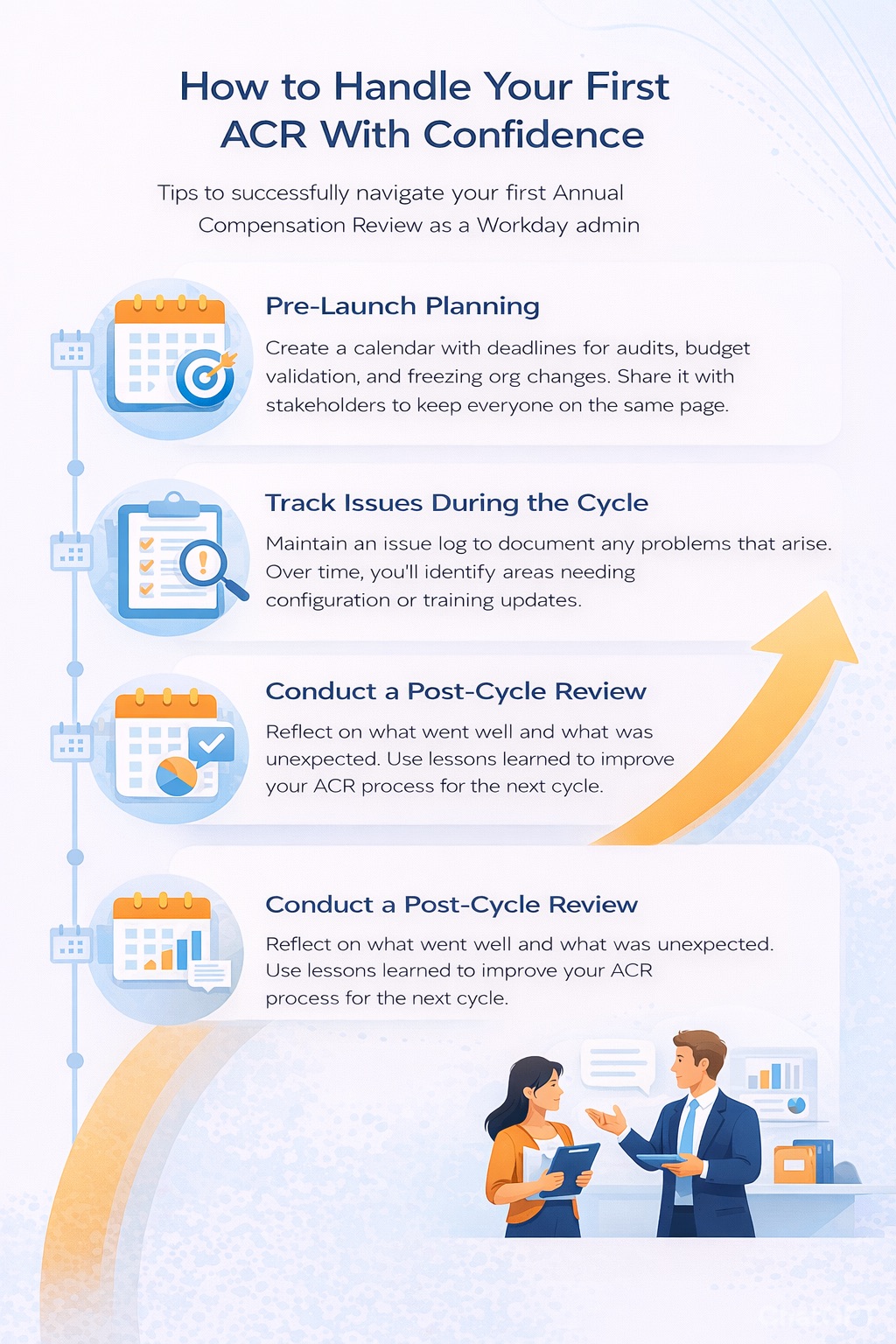
During the cycle, maintain a lightweight issue log. When a manager calls with a problem, document it. Over time, the patterns in your log tell you exactly where your configuration or training materials need work.
After the cycle closes, do a brief post-cycle review — even an informal one. What came up that wasn’t anticipated? What took longer than expected? Running a global annual compensation review process can be a huge undertaking, involving potentially tens of thousands of employees, thousands of participating managers and hundreds of departments. In order to pull it off successfully, it requires detailed planning and the use of technology to reduce manual effort while ensuring that employees are rewarded correctly. Admins who build the most efficient ACR processes over time treat each cycle as a learning loop, not just a task to complete.
Resources Worth Bookmarking
For deeper reading on compensation review configuration and administration, these are globally recognized and trusted sources:
Workday Community (community.workday.com) — The official peer network for Workday users. The compensation review discussion threads are dense with real-world admin experiences and answers not always covered in official documentation.
Society for Human Resource Management (shrm.org) — Offers frameworks for compensation philosophy and review process design that directly inform how the Workday process should be configured to match organizational goals.
WorldatWork (worldatwork.org) — A leading authority on total rewards strategy. Their compensation survey data and design guides are widely used by Total Rewards teams who partner directly with Workday admins on cycle design.
U.S. Bureau of Labor Statistics (bls.gov) — Publishes compensation and wage data that many organizations use as benchmarking context when setting merit budgets. Understanding this data helps admins ask better questions when reviewing budget pool configurations.
Workday’s official Help and Documentation — Available through your tenant’s Help menu. It’s the most authoritative reference for how each configuration field behaves.
Final Thoughts
The ACR cycle in Workday is one of the most visible and high-stakes processes a system admin supports. When it goes smoothly, it barely gets noticed. When it doesn’t, everyone knows about it. That asymmetry puts real pressure on admins — especially in a first cycle, and especially when a reorg is happening at the same time.
What makes the biggest difference is preparation. The data audit, the org freeze window, the manager training, the pre-launch checklist — none of these are glamorous, but they are what separate a cycle that runs cleanly from one where the admin is fielding escalations all week.
At DecisionMakersHub, we hear from Workday admins navigating exactly this kind of complexity all the time. The answer is almost always the same: start early, communicate clearly, lock down your key dates, and lean on the audit reports Workday gives you. The process is absolutely learnable. The configuration has guardrails. And now you have a map.