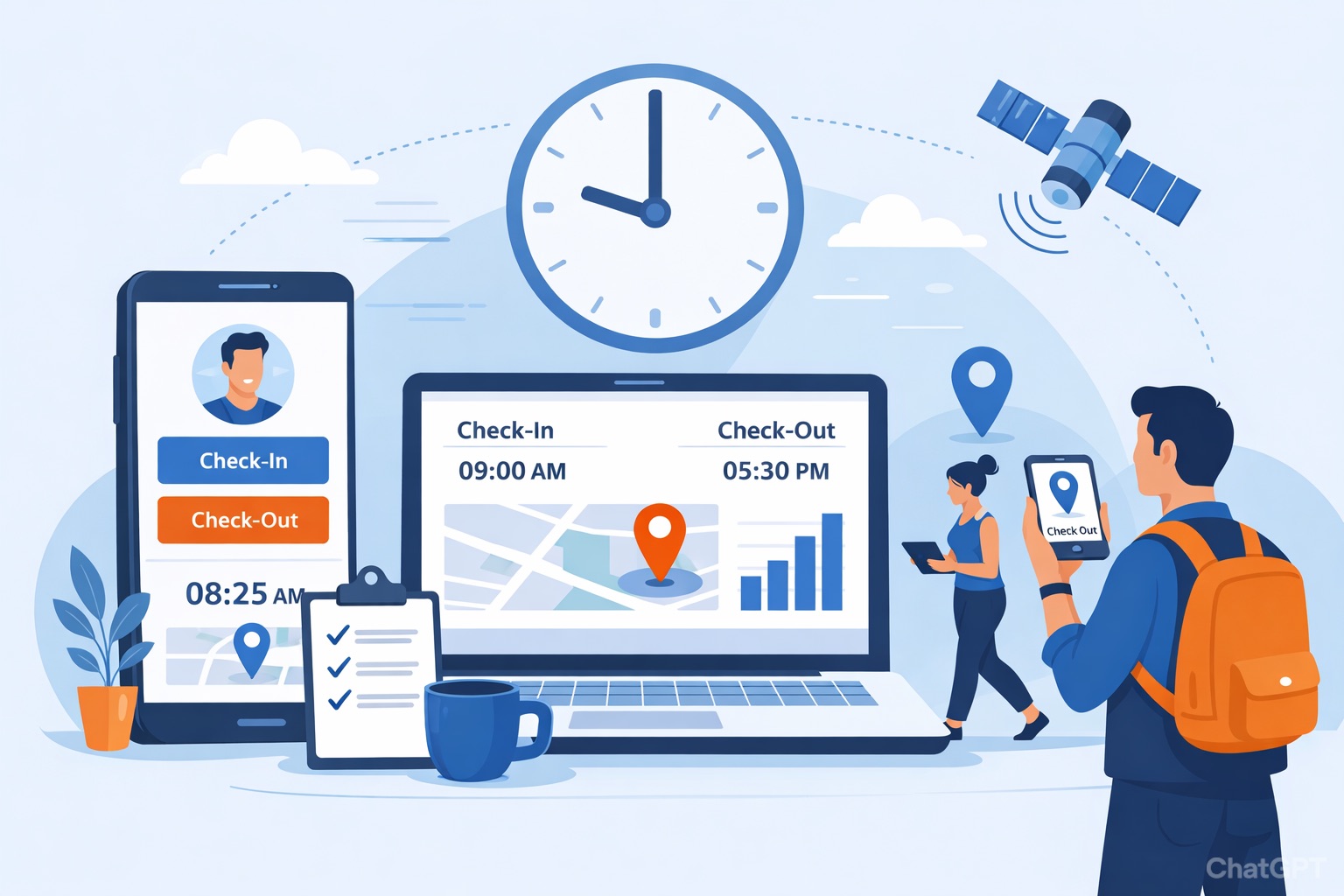
Many employees wonder if their employer can see exactly where they are when they check in or out using Workday. This question often comes up in organizations that rely on Workday for time tracking, especially with mobile apps or web-based clocks. The short answer is: Workday does not constantly track your location like a GPS app. However, it offers optional features that can capture location data for specific purposes, such as ensuring accurate time entries.
At DecisionMakersHub.com, we help Workday system admins in the US and Canada understand these tools so they can configure them correctly, stay compliant, and support their teams effectively.
How Workday Handles Basic Time Entry and Location
Workday Time Tracking lets employees check in and check out through the mobile app, web browser, or integrated kiosks. For standard use, it records the date, time, and method of entry—like mobile device or desktop. It logs the IP address for every login or action, which can show a general area (city or region) but not precise GPS coordinates.
![Infographic showing how employees check in and out in :contentReference[oaicite:0]{index=0} Time Tracking, including timestamps, entry methods, IP-based location logging, and optional geofencing without continuous GPS tracking](https://decisionmakershub.com/wp-content/uploads/2026/02/workday-time-entry-location-infographic.jpeg)
Official Workday resources, including their Time Tracking datasheet, explain that core features focus on accurate timestamps and easy self-service. Without extra setup, there is no ongoing location monitoring. Some organizations, like universities or cities, clearly state in their FAQs that Workday does not track or store detailed location data—even during work hours. Employees must enable location services only if geofencing is turned on for mobile check-ins.
What Geofencing Means in Workday Time Tracking
Geofencing is one of the most common ways location comes into play. This feature creates a virtual boundary around a job site using GPS. When an employee enters or leaves the area with the Workday mobile app open, the system can prompt them to check in or out automatically. It helps prevent errors like clocking in from home or far away.
Workday’s official product pages highlight mobile check-in with geofencing as a built-in option. Workers get reminders tied to the boundary, and managers avoid constant oversight. This works well for field teams, retail, healthcare, or any role with on-site requirements. Admins configure the geofence radius during setup, and it only activates for time events—not continuous tracking.
Trusted sources like the Society for Human Resource Management (SHRM) emphasize that location-based tools should balance accuracy with privacy. SHRM guidelines on timekeeping recommend clear policies so employees know when and why location is used.
Does Workday Capture GPS Coordinates or Real-Time Tracking?
Standard Workday does not provide real-time GPS tracking throughout the day. It captures location only at the moment of check-in or check-out if geofencing is active and the device shares it. Some third-party integrations or add-ons can request exact GPS coordinates during punches for extra verification, but this requires custom configuration.
In many setups, especially for desk-based or office workers, no location data is collected at all. Desktop or web check-ins rely on IP logging, which is broad and not pinpoint accurate.
Why Location Features Matter for Compliance and Accuracy
Accurate time records help meet U.S. Department of Labor (DOL) and Canadian employment standards rules on paying for all hours worked. Geofencing reduces “buddy punching” or time theft risks while supporting fair pay. For hybrid or mobile teams, it ensures time ties to the right place without invasive monitoring.
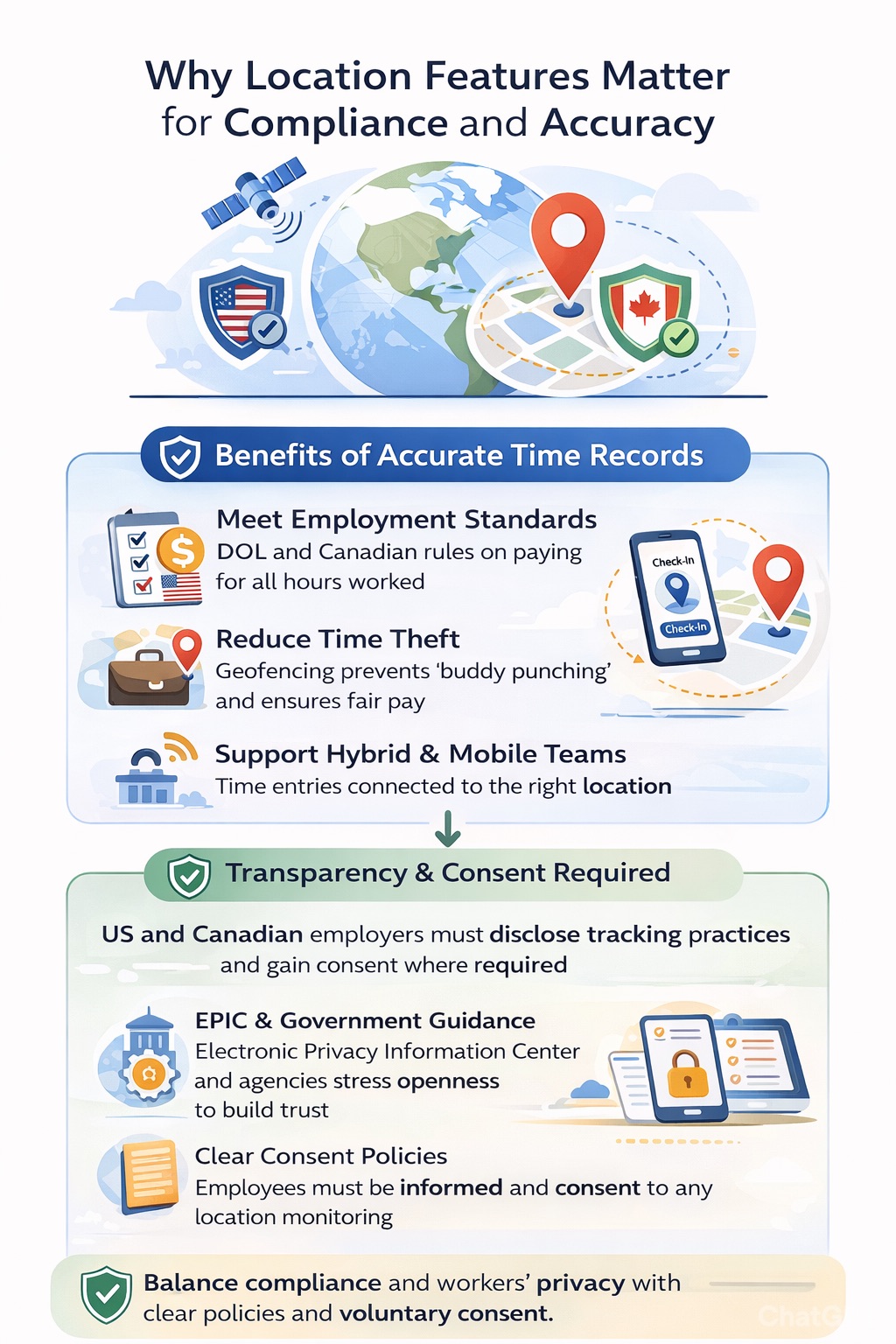
However, privacy laws vary. In the US and Canada, employers must disclose tracking practices and get consent where required. The Electronic Privacy Information Center (EPIC) and government guidelines stress transparency to build trust.
How Admins Can Configure or Limit Location Tracking
As a Workday admin, review your tenant’s Time Tracking settings. Decide if geofencing fits your needs—enable it for specific worker groups or locations. Test with sample employees to confirm prompts work as expected.
Create clear policies: explain in employee handbooks that location is used only for check-in/out validation, not ongoing surveillance. Offer alternatives like web entry or kiosks for those uncomfortable with mobile location sharing.
Document everything. Train managers on reports that show entry methods (mobile vs. desktop) without unnecessary details.
Better Options for Advanced Location Needs
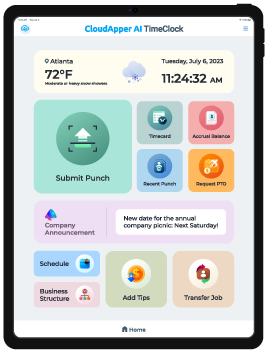
For organizations wanting stronger controls—like offline support, biometrics, or tighter geofencing—many admins pair Workday with specialized tools. One popular choice is CloudApper AI TimeClock for Workday. It adds touchless face recognition, geofencing with customizable zones, offline punch capture, and instant sync to Workday Time Tracking, Payroll, and Absence. Employees clock in securely from authorized spots, reducing fraud and manual fixes. It supports compliance with features like attestations and location verification, often at lower cost than built-in alternatives. Explore it at https://www.cloudapper.ai/affordable-touchless-biometric-ai-time-clock-for-workday-time-tracking-payroll/ if your team needs precise, user-friendly location handling.
Frequently Asked Questions About Workday and Employee Location Tracking
Does Workday track my location all day?
No. Workday does not continuously monitor location. It may use device location only during mobile check-in/out if geofencing is configured.
Can Workday use GPS for time clock check-ins?
Yes, through optional geofencing. It creates virtual boundaries so mobile users get check-in reminders only when on-site.
Does Workday log IP addresses for logins?
Yes, every login records the IP address, showing general location (like city), but not exact GPS.
Is geofencing required in Workday mobile time tracking?
No—it’s optional. Admins turn it on per organization or role to improve accuracy for field or site-based work.
How do privacy laws affect location features in Workday?
US DOL and Canadian standards require accurate records, but employers must be transparent. Disclose practices and limit use to business needs.
Can employees opt out of location sharing in Workday?
Often yes—use web or kiosk options instead of mobile. Admins can configure access controls.
Balance Accuracy with Trust
Workday gives admins flexible tools for time tracking without built-in constant surveillance. Geofencing adds smart location checks where needed, helping payroll stay accurate and compliant. The key is thoughtful setup, clear communication, and respect for privacy.
DecisionMakersHub.com shares practical insights like this to empower Workday admins across the US and Canada. Review your configurations today—small tweaks can prevent confusion and keep your workforce running smoothly.